How To Convert Hd Files?
With the development of high technology, HD entertainment devices gradually access to peoples life
. So usually people meet with the problem in converting HD video to general video or HD video.Dont be worried about it. With the newest release of HD Video Converter, you can convert HD video to general video, convert general video to HD video, convert among HD videos, such as HD TS, HD MTS, HD WMV, HD MPG, HD MPEG4, H.264/AVC , HD AVI, HD ASF, etc. Moreover, Tipard HD Video Converter has audio conversion and audio extraction functions to convert among audios, extract audios from general videos and HD videos to AAC, AC3, AIFF, AMR, AU, FLAC, MP3, M4A, MP2, OGG, WAV, WMA audios.
This guide explains to you how to use this professional program above.
Step-by-step instruction is as follows:
Step 0: Download and install Tipard HD Video Converter.
Share:
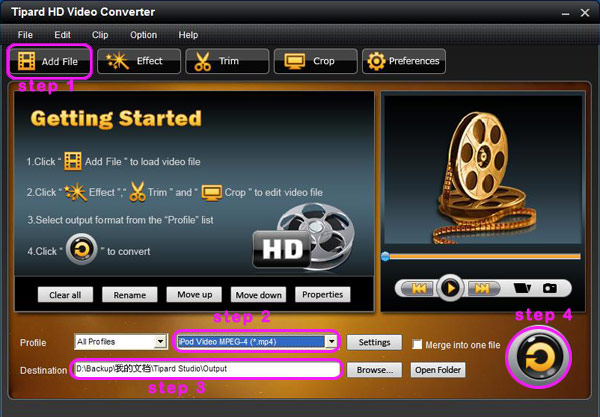
Step 1:Click the "Add File" button to load video file.
Step 2: Video settings
Select the output video format you want from the drop-down list of profile.
Note:
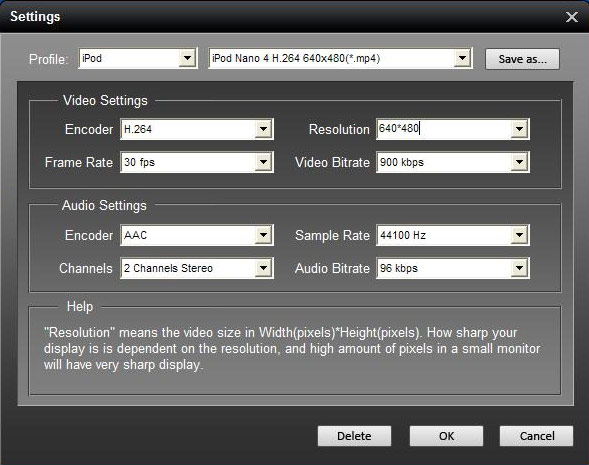
By cicking the "Settings" button, you can set the video parameters and audio tract.
The settings interface is shown below:
Share:
Additionally, you can set your own profile and data by selecting User Defined in the profile or in settings interface saved as your choice.
Step 3: Select the output path. You can choose the default path or select your own path by clicking Browse button after you have set the file on the computer.
Step 4: Click the "Start" button to start conversion. It is very fast and in a short while your conversion will be finished.
The main functions of the HD video converter are shown below:
Snapshot
If you like the current image of the video you can use the Snapshot option, just click the Snapshot button and the image will be saved and then click the Open button next to Snapshot button to open your picture.
Merge
If you want to merge several videos into one file you can choose them at one time and click the Merge into one file to do it.
Effect
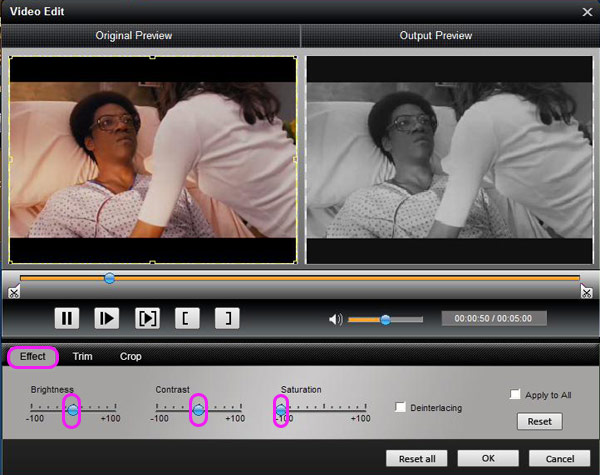
Click Effect button you can do these actions: adjusting brightness, contrast and saturation of the video. You can easily adjust the video through two windows in the same interface.
Share:
Trim
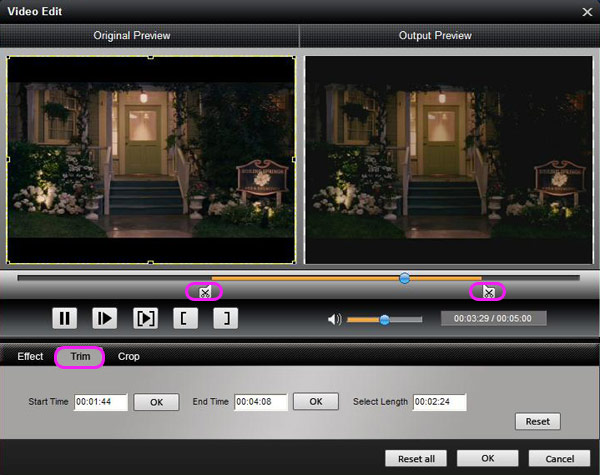
If you just want convert a clip of your video, then you can use the "Trim" icon to set the Start time and End time of the clip or you can directly drag the slide bar to the accurate position.
Share:
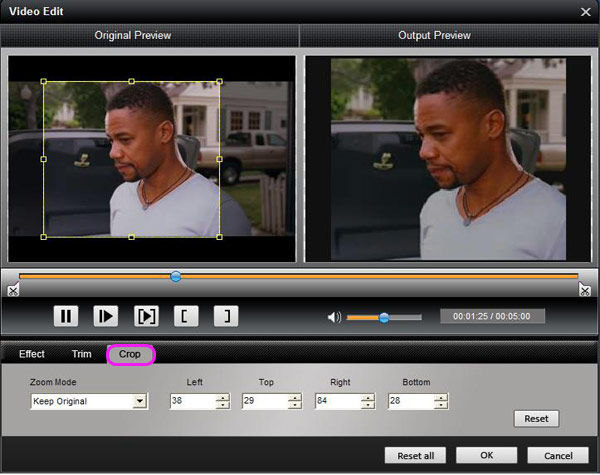
Crop
By using the Crop function you can crop the black edge of your video and you can also drag the line around the video image to adjust your video to your Google Phone.
Share:
All operation is completed in a few minutes with several clicks.
by: Angelesb