Connect Wifi To Your Huawei B593
Now, many friends are using the Huawei LTE CPE B593
, but there's some problem to connect the WiFi, this time, we 4gltesolution.com will show you the detail steps about WiFi connection settings for this Huawei LTE CPE B593. Just follow us as below steps, come on, my friend !Complete modem settings including manual wireless network setup is done using the web configuration. Therefore, it is necessary to have for the initial setup WiFi computer connected to the modem using a network cable.In a Web environment enter modem configuration .Simply click on the link, or enter this address into your Internet browser.

Share:
The login form. The line User name check option Admin . To log into the web configuration, you must know the administrator password. If you have not changed the password before yourself, the default password "admin" . Subscribe by clicking on Log In .

Share:
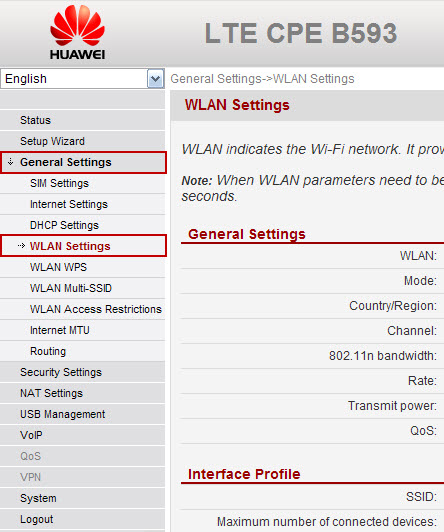
After logging in, select the left vertical menu select General Settings , then LAN Settings .
Share:
On the right side of the page displays the configuration of your WiFi network. In the top section, labeled General Settings , select the row WLAN checkbox Enable .
In the lower part, labeled Interface Profile , type in the line SSID name of your network. Name you can think of any, but can not contain spaces or accents. Under this name will later find its WiFi network on your computer.
In Line Security , select WPA-PSK + WPA2-PSK . In row WPA-PSK type the password, which will secure your WiFi network. Password you can think of any, but must have at least 8 characters and can not contain spaces and accents. Finally, in line WPA Encryption , select TKIP + AES .
If you want the WiFi network is unsecured, that is freely available to everyone in the row selectSecurity option NONE .
Other lines and let the box set as they are, and to save the settings, click Submit . To start to download and activate the WiFi network.

Share:
If everything went well, the modem will turn on the WLAN . Now the modem WiFi network of this Huawei LTE CPE B593 is set up, you can close the browser window, disconnect the power cord and connect to the Internet via a wireless network.
Turn on the WiFi adapter on your computer (switch or button that activates the WiFi signal reception) and locate the available wireless networks in the area - the procedure varies depending on the operating system of the computer. Between networks should be already and which network you just created and named.
Select it and connect to it. While connecting, you are prompted for a network key (password). After entering the password, the system announces that you are connected. Your WiFi connection for the Huawei LTE CPE B593 is now fully functional.
by: modem3g