How To Convert Hd/mts Files
This article includes two parts:
This article includes two parts:Part 1: How to convert and edit HD videos with 4Easysoft HD Converter
Part 2: How to convert MTS/TS/MOD video to regular video with 4Easysoft MTS Converter
Part 1: How to convert and edit HD videos with 4Easysoft HD Converter
Preparation:Download and install 4Easysoft HD Converter
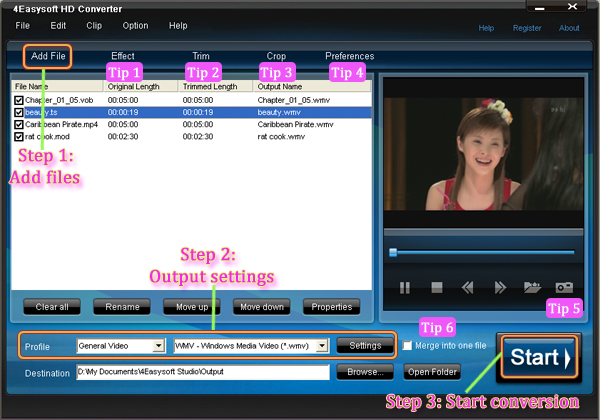
Step 1: Add files
Click Add File button to load the video files that you want to convert.
Step 2: Set output settings
You can choose the output format from the profiles drop-down lsit.
You can set Encoder, Bitrate, Channels, Resolution and so on by clicking setting button.
Step 3: Start conversion.
Click Start to begin the conversion with high output quality and converting speed.
Share:
Key features of this converter:
1.Convert among HD videos, such as HD DV, HD TS, MTS, M2TS,etc
2.Convert among SD videos or general videos
3.Convert SD (Standard-Definition) video or general video to HD video
4.Convert HD video to SD (Standard-Definition) video or general video
5.Edit or polish video - Merge, Effect, Trim, Crop and Snapshot
Part 2: How to convert MTS/TS/MOD video to regular video with 4Easysoft MTS Converter
4Easysoft MTS Converter can not only convert MTS, but also TS, MOD, and various HD videos to regular videos.
The following are the detailed guide:
Preparation: Download and install 4Easysoft MTS Converter
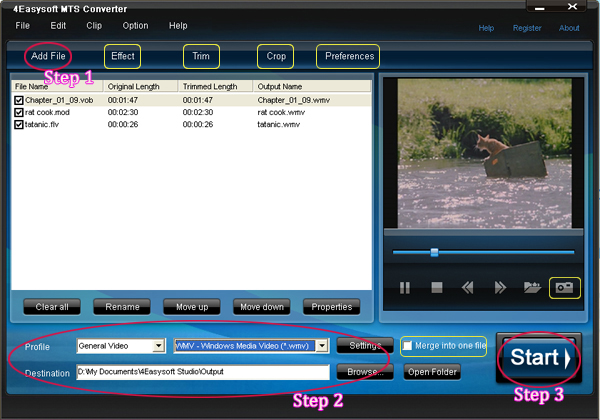
Step 1: Import video files
Click Add File button, you can add the video files that you want to convert.
Step 2: Set output settings
You can choose the output video format from the drop-down list button.
You can set Encoder, Bitrate, Channels, Resolution and so on by clicking Settings button.
You can choose the output folder by clicking Browse, or the defalt folder is D:My Documents4Easysoft StudioOutput.
Step 3: Start conversion
Click Start button, you are allowed to start conversion. All the tasks of conversion will be finished at fast speed and high output quality.
Share:
Editting Tips About the above Two Converters:
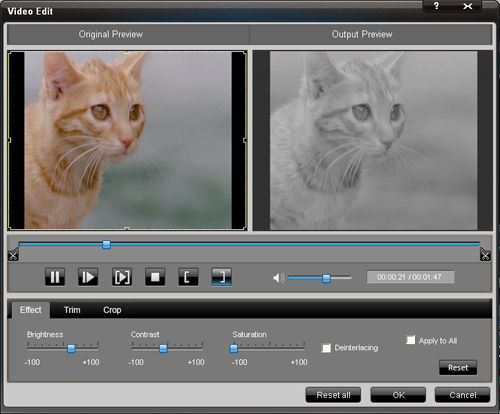
1. Adjust video effect
Click Effect button, you can set the video Brightness, Contrast, Saturation and check the Deinterlacing which helps you to optimize the video effect.
Share:
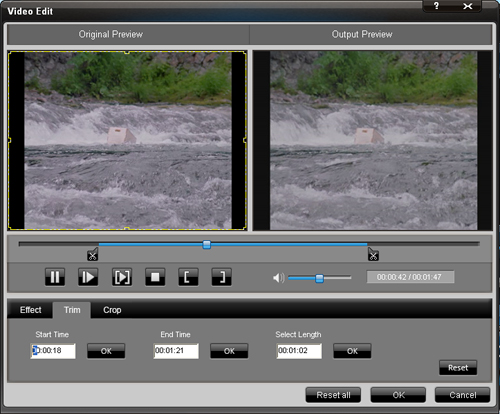
2. Trim video
Click Trim button, then you can trim the videos by dragging the slider bar, click "Start Time" and "End Time" button, or setting the values
Share:
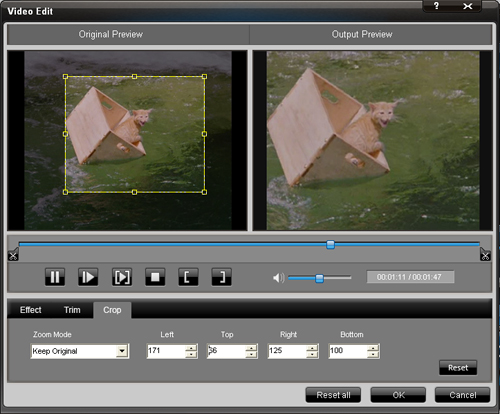
3.Crop video
Click Crop button and you can crop videos by selecting a crop mode, adjusting the crop frame, or setting the crop values.
Share:
4. Select preference
Click the Preference button you can select the output destination, the Snapshot foler, the format of the snapshot image,etc.
5.Take snapshot
Just click the "Snapshot" button, you can save any picture you like when you are previewing vdieos.
6.Merge your files
If you want to merge several files into one file you can choose them and click the "Merge into one file" to do it.
Related tools:
4Easysoft Total Video Converter:This converter can help you convert among all mainstream video and audio formats and help you take videos easily on PSP, PS3, iPod, iPhone, Apple TV, Xbox or other digital devices.
MP4 Converter
by: Angelesb